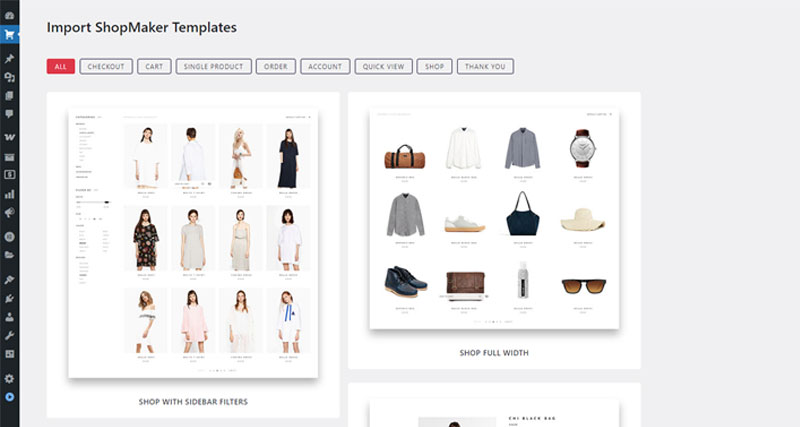
ShopMaker comes with a collection of professionally designed, ready-to-use Elementor templates for all key WooCommerce pages — such as Product, Shop, Cart, Checkout, My Account, and more. These templates are ideal if you want to speed up the design process or use them as a base for your own customization.
Importing and using these templates is straightforward and can be done in just a few steps.
Steps to import a pre-built template in ShopMaker
Go to the Import Templates section In your WordPress dashboard, navigate to ShopMaker → Import Templates.
Browse available templates You’ll see a library of professionally designed templates categorized by type (Single Product, Cart, Checkout, etc.). You can preview each template before importing it.
Choose and import a template Click on the Import button next to the desired template. The template will be automatically saved under Elementor → Templates → Saved Templates. You can now edit it using Elementor.
Assign the template Go to ShopMaker → WooCommerce Templates. Use the dropdowns to assign the imported template to the corresponding WooCommerce page (e.g., assign a “Single Product” template globally, or use it for Cart, Checkout, etc.).
Why use pre-built templates?
They are fully compatible with ShopMaker’s widgets.